|
|
|
|
Policy Documents |
|
|
In order to view or download the policy documents you will need to have Adobe Acrobat Reader installed on your computer. Reader is a free program by a reputable company that allows you to easily read and download formal documents. If you do not already have Reader installed, it can be downloaded from Adobe's website, just click the link and follow the instructions |
|
|
Adobe Reader |
|
|
|
|
|
Help with Adobe Acrobat Reader |
|
|
Reader has a help section which gives full information on all it's features, but in order to save time here is a summary of Reader's basic features. More information on Reader can be found by clicking Help and then Reader Help. |
|
|
|
|
|
Bookmarks |
|
|
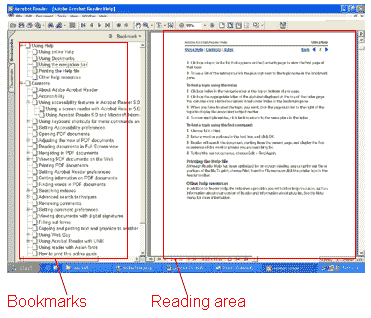
Bookmarks allow you to move immediately to a specific section of the document instead of having to go through the whole document looking for your information. Click on a bookmark in the bookmark section of the page to go directly to the relevant information. The reading area contains the information relating to the bookmark. Some documents do not have bookmarks because they are too short to be divided into sections. |
|
|
 |
|
|
|
|
|
Navigation |
|
|
You can move between the different pages of a document by using the forward and backward buttons. They are located at both the top and bottom of the screen. |
|
|
|
|
|
Buttons at top of screen  |
|
|
The buttons on the extreme left and right will take you to the beginning and the end of the document respectively. The center left and center right buttons will move you forward or back one page. |
|
|
|
|
|
Buttons at bottom of screen  |
|
|
Reader also has the ability to go to any page in the document you want. Just click on the numbers (in this example '2 of 52') and then enter the page number you wish to go to. |
|
|
Magnify  |
|
|
If you want to make a page larger to see its contents, click on the magnify icon at the top of the page to change the pointer into a zoom in tool. Move the zoom in tool over the page content and click to magnify. If you want to make the content smaller (zoom out) then click the small triangle on the right side of the magnify icon and change the magnifying glass to a zoom out tool. Click on the page content with the zoom out tool to zoom out. |
|
|
Hand  |
|
|
The hand is used to move a page you are currently viewing. This is useful if you have a page magnified and want to move the page around the screen to see all its content. Click on the hand icon at the top of the page to change the pointer into a hand, then click the page and drag it around to see all its content. |
|
|
|
|
|
Printing from Web Pages |
|
|
Normally when you print out a web page, the printer will also print information you don't need such as menu bars, pictures and so on. Printing these features is a waste of ink and time, so this site has been designed to print only the information you need ('printer friendly'). When you want to print information from a page, click the 'print page' option found at the top of the page. This option will show you what the page will look like when it is printed. Click the 'print now' option at the top of this page and the page will print. Once it has finished printing, click the 'back' button in your browser to return to the web page |
|
|
|
|
|
Email |
|
|
In order to email an MP or other contact that is listed on the web page, click on the email address, which is next to the person's entry on the 'contact us' section of the site. |
|
|
|
|




